
1. Pre-use Preparation
1.1 Confirm Equipment List
- 1 mobile phone or pad (Bluetooth-supported, compatible with Fencing APP installation)
- 1 left and 1 right fencing referee machine
- Charging cable and charger
1.2 Recommended Usage Environment
- Use indoors or in an environment with stable signal
- Avoid strong electromagnetic interference (high-power electrical appliances, complex metal structures, etc.)
- Ensure the referee machine has sufficient power and the mobile phone’s Bluetooth is enabled
2. APP Installation and Launch
2.1 Install the Fencing APP
a. Search for “Fencing” in the mobile app store or install it according to the download method provided by the manufacturer.
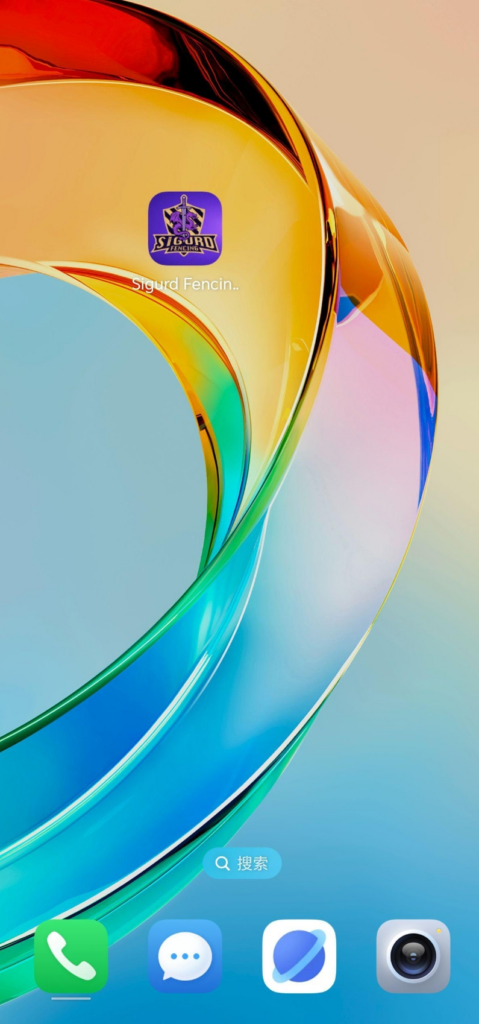
b. After installation, the following icon will be displayed on the mobile phone desktop:
2.2 Launch the APP
a. Tap the Fencing icon on the mobile phone desktop.
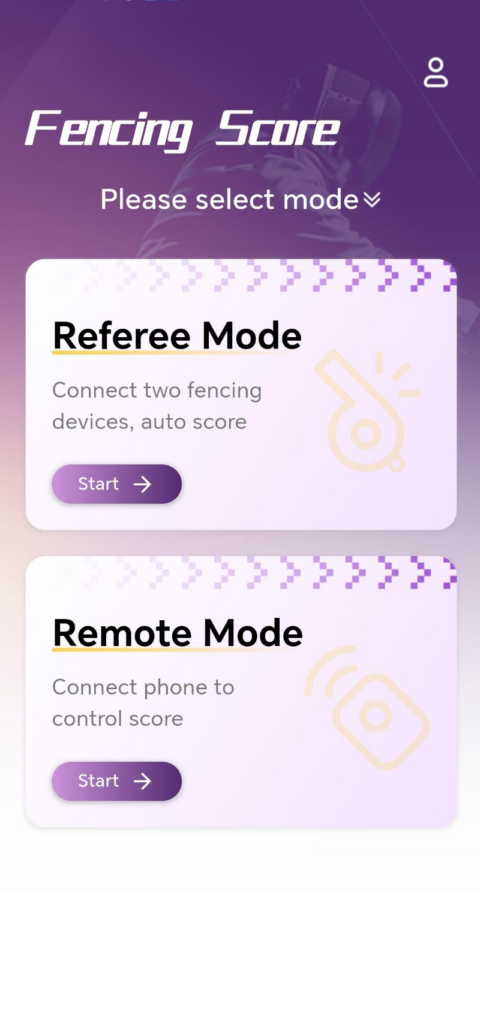
b. Enter the APP homepage, the overall interface example is as follows:
3. Mode Introduction and Switching
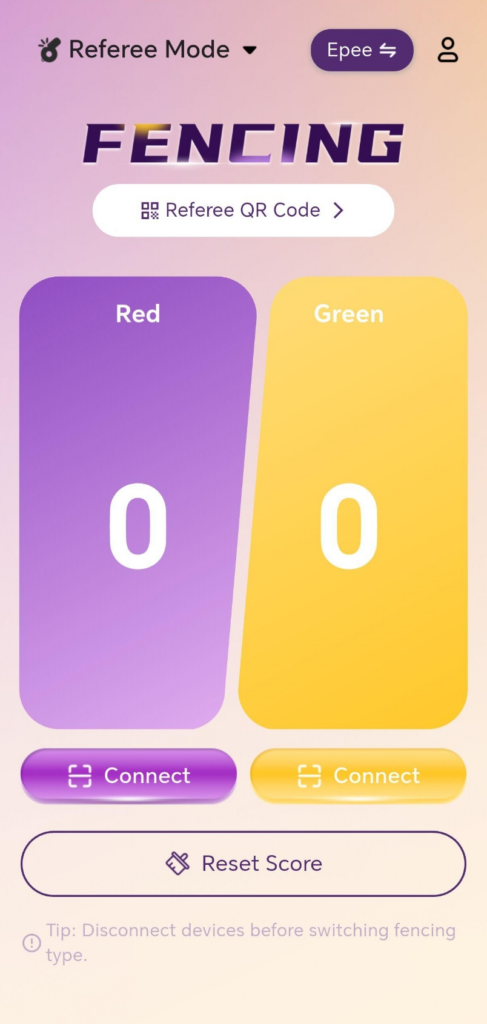
3.1 Referee Mode
- After entering the referee mode, you can view the scores of both sides, the light penalty area and other information.
- Schematic interface:
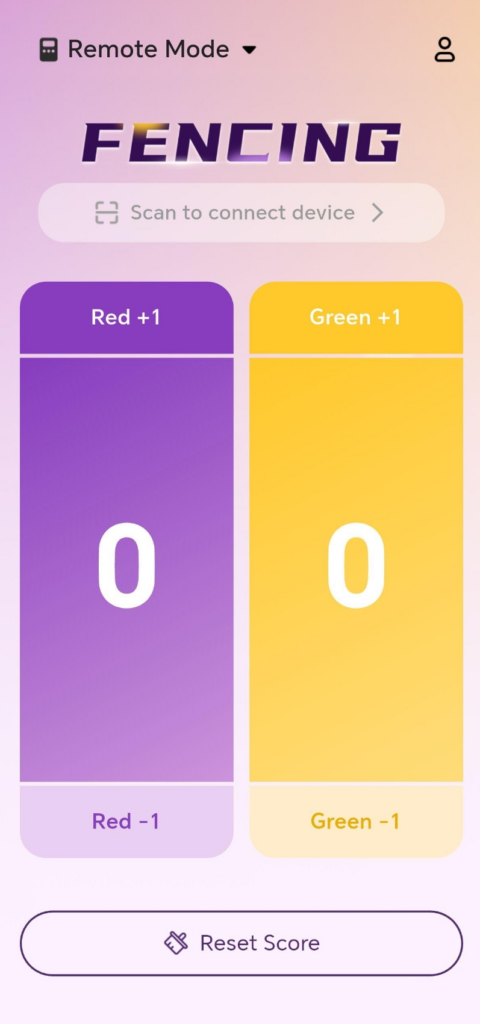
3.2 Remote Control Mode
- Main functions:
- Manually add/subtract points for either side
- Manually reset the scores
- Act as a remote control terminal to link with the referee mode
- Schematic interface:
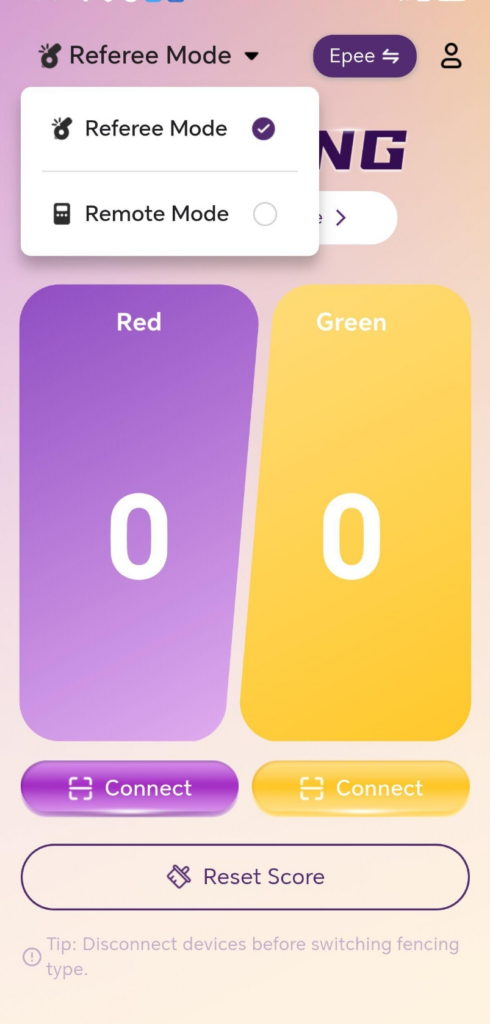
3.3 Mode Switching
- Find the “Mode Switch” entry on the APP homepage.
- Tap it to switch between Referee Mode / Remote Control Mode.
- Schematic interface:
4. Select Fencing Type (Epee / Foil / Sabre)
Different fencing types have different penalty rules and wiring methods. Be sure to select the correct one in the APP before use.
4.1 Fencing Type Selection Steps
- Open the Fencing APP and enter the referee mode.
- Find the “Fencing Type” option.
- Select the corresponding type from the list: Epee / Foil / Sabre.Schematic interface:
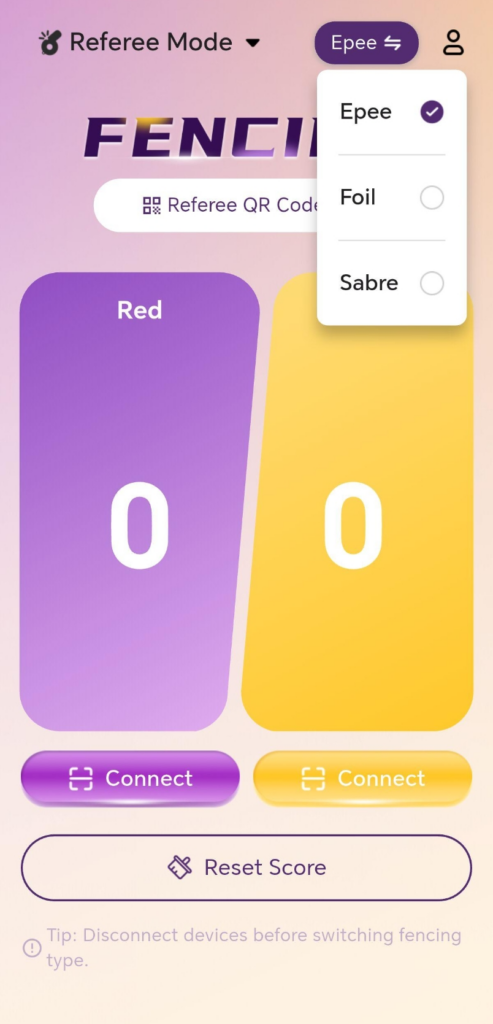
Recommendation: Always reconfirm that the fencing type configuration in the APP is consistent each time you change the weapon type (e.g., from Epee to Foil).
5. Connection Steps between Referee Machine and APP
The following example illustrates the process of connecting the left device first, then the right device.
5.1 Turn on the Referee Machine Power
- Locate the power button on the body of the left referee machine.
- Press the power button to turn it on and check that the power indicator light is on.
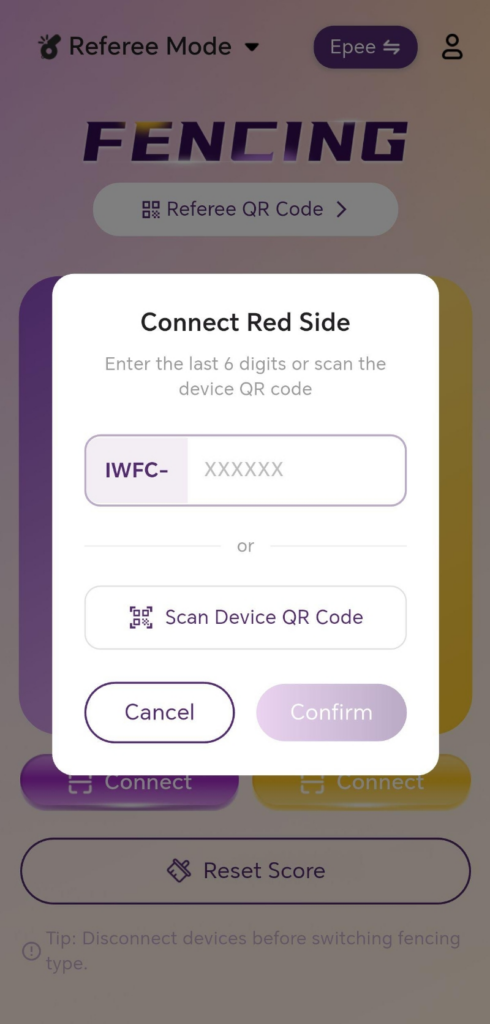
5.2 Connect the Red Side Device via APP
- Open the Fencing APP on your mobile phone and enter the Referee Mode Homepage:
- Tap the Connect Red Device button on the interface.
- On the pop-up red device connection page, enter the last 6 digits of the device ID or scan the QR code to obtain the device ID.
- Tap Confirm and wait for the device to connect.
- A “Connection Successful” prompt will be displayed on the red side device once connected.The overall connection schematic interface is for reference:
Notes:
- Always turn on the device’s power button before connecting the device.
- Disconnection and reconnection may occur during the search and connection process, which is normal.
- Please wait for the connection status to stabilize before performing the next operation.
5.3 Connect the Green Side Device via APP
- Connect the green side device following the same process as in 5.2.
When both devices are successfully connected, the APP will usually prompt “Devices Ready”, indicating that the system is ready for use.
6. Usage Specifications and Troubleshooting Guide
To ensure the fairness of fencing training and competitions, and to achieve the best wireless detection experience, please carefully read the following instructions regarding device characteristics, operating specifications, and common issues.
I. Device Characteristics and Technical Notes
Due to the physical limitations of wireless sensing technology, the following phenomena fall within the current industry technical scope. Umpires and athletes should be aware of them during use:
- Epee Mode: When the tip hits the ground (non-metallic piste area), the device may incorrectly register a hit.
- Sabre Mode: When hitting the opponent’s unprotected bare skin (e.g., palms), it may trigger a hit registration.
- Foil Mode:
- Hitting the opponent’s handle area may be incorrectly registered as a valid hit.
- Special Signal Interference: When the two blades are in contact (twisting/pressing swords) and both hit non-valid areas (e.g., arms) at the same time, a hit registration may occur occasionally.
II. Mandatory Operating Norms
Incorrect operation will directly lead to abnormal scoring logic or unstable signals.
表格
| Category | Specification | Consequence of Violation |
|---|---|---|
| Protective Gear | Fencing gloves must be worn; for Sabre, the armband must be tightly worn on the upper arm. | Direct skin contact with the handle or loose armband will cause abnormal resistance, resulting in inaccurate hit judgment. |
| Prohibited Contact | It is strictly forbidden for a single person to hold both the red and blue swords with both hands at the same time. | This will form a short circuit, causing confusion in the system’s judgment logic. |
| Device Placement | It is strictly forbidden to place the referee machine main unit directly on the metallic jacket. | Physical isolation must be maintained to prevent strong electromagnetic interference. |
| Behavior Norms | [For Foil] It is strictly forbidden for an athlete to touch their own metallic jacket with their own sword. | If the opponent hits the athlete at this time, the system may fail to correctly judge the hit. |
Tip: For the physical problem of excessive or unstable blade resistance in Foil/Epee, please ensure the use of standard-compliant equipment. Our company will continue to optimize compatibility with abnormal resistance through OTA firmware upgrades in the future.
III. FAQ & Troubleshooting
Device Fails to Connect / Disconnects Frequently?
- Power Check: Confirm the referee machine has sufficient power.
- Distance & Environment: Ensure Bluetooth on your phone/tablet is enabled, and stay close to the referee machine. Avoid working in environments with strong electromagnetic interference sources.
- Reset Attempt: If the connection fails multiple times, try:
- Completely close the APP and reopen it;
- Turn off the referee machine, wait 5 seconds, and restart it.
APP Cannot Search for the Device?
- Occupation Check: Confirm the referee machine is turned on and not connected to another phone.
- Device Identification: If there are multiple sets of devices on site, confirm the device ID, or try to refresh the search close to the target device.
Abnormal Score or Light Display (False Positive / Missed Hit)?
- Mode Matching: Check if the fencing type (Epee / Foil / Sabre) selected in the APP matches the actual weapon used.
- Physical Connection Check:
- Check that the plugs of the body cord, head cord, device, and sword are tight.
- [For Foil] Check that the metal clip is properly attached to the metallic jacket.
- [For Sabre] Confirm the armband is in the correct position and fastened.
- After-sales Support: If abnormalities still occur repeatedly after excluding the above factors, please record the device status and contact the manufacturer for further troubleshooting.